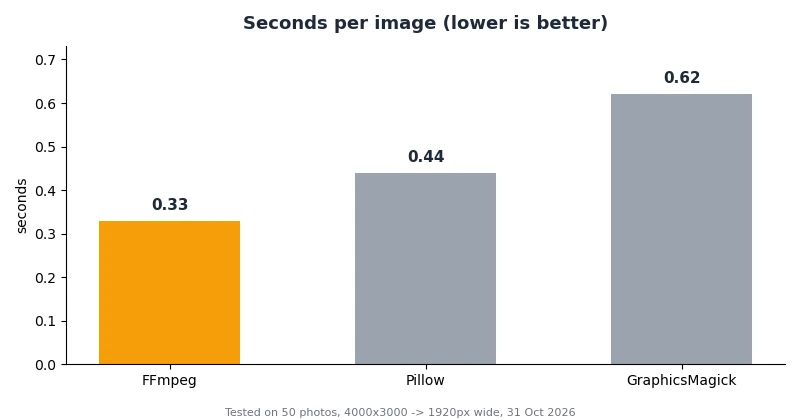
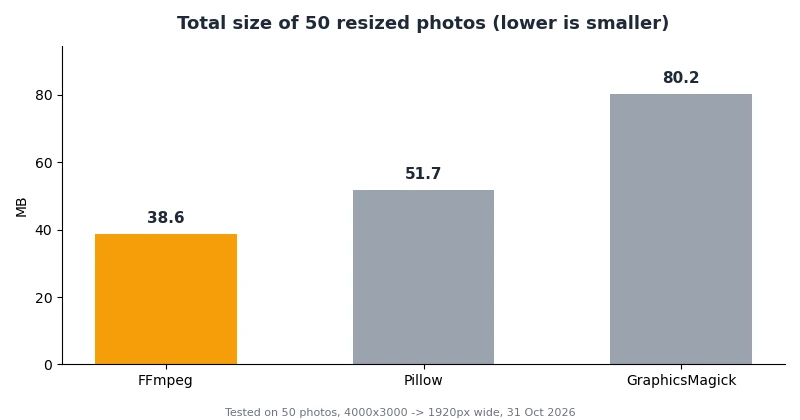
Short answer: use FFmpeg. One short loop resized all 50 of my test photos from 4000×3000 down to 1920 pixels wide in 16.5 seconds — about 0.33 seconds per image — and produced the smallest files of the three tools I tested. If you already write Python, Pillow is a solid second choice; GraphicsMagick works but was nearly twice as slow as FFmpeg in my test. The exact commands for all three are below, and none of them will stretch your photos out of shape if you use them as written.
The test: 50 photos, 3 tools, one target size
To compare fairly, every tool started from the same 50 images: 4000×3000 JPEGs (the size a phone camera commonly produces) that I generated on this machine, averaging 7.4 MB each, 354.5 MB in total. The target was the same for all three: 1920 pixels wide with the aspect ratio preserved, which for a 4:3 photo means 1920×1440. I ran each tool over all 50 files and timed the whole batch, then checked every output's dimensions and total size.
One honest caveat: my test images are generated (smooth gradients plus noise and shapes), not real camera photos, so your exact file sizes will differ. The ranking and the rough gaps, though, come from the tools themselves, not the pictures. All three tools also used high-quality JPEG settings (Pillow quality 90, GraphicsMagick quality 90, FFmpeg -q:v 3), but each encoder's defaults differ slightly, so treat the size gap as indicative, not a laboratory-grade codec comparison.
The results
| Tool | Time for 50 images | Per image | Output total | Smaller than source |
|---|---|---|---|---|
| FFmpeg | 16.51 s | 0.33 s | 38.6 MB | 89.1% |
| Pillow (Python) | 22.11 s | 0.44 s | 51.7 MB | 85.4% |
| GraphicsMagick | 30.98 s | 0.62 s | 80.2 MB | 77.4% |
I verified every output file's dimensions after each run: all 150 resized images came out at exactly 1920×1440. No tool dropped, corrupted, or mis-sized a single file.
Method 1: FFmpeg (fastest)
FFmpeg is probably already on your machine if you do anything with video, and its image scaling is excellent. This loop resizes every JPEG in the current folder into a resized/ folder, keeping each file's name:
mkdir resized
for f in *.jpg; do
  ffmpeg -y -v error -i "$f" -vf scale=1920:-2 -q:v 3 "resized/$f"
done
The two details that matter: scale=1920:-2 means "1920 wide, height whatever preserves the aspect ratio" (the -2 rounds to an even number, which some encoders require), and -q:v 3 sets high JPEG quality — lower numbers mean higher quality on FFmpeg's 2–31 scale. Leave -q:v out and FFmpeg picks its own default, which is noticeably lower quality.
FFmpeg's win here is no surprise: it is a purpose-built media engine, and it processed each photo in a third of a second. If your goal is simply "shrink this folder of photos," stop here.
Method 2: Pillow (best if you already use Python)
If you want to do more than resize — watermark, crop, rename, or sort by size in the same pass — a short Python script with Pillow earns its keep:
from PIL import Image
import os

os.makedirs("resized", exist_ok=True)
for name in os.listdir("."):
    if name.lower().endswith(".jpg"):
        with Image.open(name) as im:
            im.resize((1920, 1440), Image.LANCZOS).save(
                os.path.join("resized", name), quality=90)
Note that this version hard-codes 1920×1440, which is only right for 4:3 photos. For mixed folders, compute the height from each image instead:
w, h = im.size
new_h = round(h * 1920 / w)
im.resize((1920, new_h), Image.LANCZOS)
Pillow took 22.11 seconds for the batch — about a third slower than FFmpeg — and its files came out larger (51.7 MB vs 38.6 MB) at nominally the same quality setting, because JPEG encoders differ. The tradeoff is flexibility: anything you can express in Python, you can bolt onto this loop.
Method 3: GraphicsMagick (the classic one-liner)
GraphicsMagick is the maintained fork of ImageMagick, and its mogrify-style batch command is the shortest of the three:
mkdir resized
for f in *.jpg; do
  gm convert "$f" -resize 1920x -quality 90 "resized/$f"
done
Here 1920x (width with no height) means "1920 wide, scale height proportionally" — the equivalent of FFmpeg's scale=1920:-2. In my test it was the slowest at 30.98 seconds and produced the largest files (80.2 MB), nearly double FFmpeg's total. That is partly its JPEG encoder's defaults at quality 90 rather than a flaw in the resizer itself, but on the numbers I measured, it is the third pick unless you already use GraphicsMagick for other work.
The mistake to avoid: forcing both dimensions
The most common batch-resize mistake is pinning both width and height, like this:
ffmpeg -i photo.jpg -vf scale=1920:1080 resized.jpg
I ran that on one of my 4:3 test photos and confirmed the result: a 1920×1080 file that looks horizontally stretched, because a 4:3 image was squeezed into a 16:9 frame. Always set one dimension and let the tool compute the other — scale=1920:-2 in FFmpeg, 1920x in GraphicsMagick, or computed height in Pillow — unless you actually want to crop or distort.
Which should you pick?
- Just resizing a folder: FFmpeg. Fastest in my test, smallest files, one loop.
- Resizing as part of a bigger script: Pillow. Slightly slower, but you get Python's full toolbox around it.
- Already a GraphicsMagick shop:
gm convertworks fine — just expect roughly double FFmpeg's time on a big batch.
Whichever you choose, resize copies, not originals: write into a new folder (as every command above does) and keep the full-resolution files until you have checked a few outputs.
FAQ
Will resizing reduce quality?
Yes, slightly — JPEG is lossy, and every re-save discards some detail. At quality 90 (or FFmpeg -q:v 3), the loss is invisible in normal viewing, but never resize your only copy of a photo you care about.
Can I resize PNGs the same way?
Yes. All three commands work on PNG input; just change the file pattern (for example *.png) and note that PNG output stays lossless, so the files will be much bigger than JPEGs.
What about resizing to a maximum dimension instead of a fixed width?
FFmpeg can do that too: scale='min(1920,iw)':-2 leaves smaller images untouched instead of upscaling them. The same idea in Pillow is a one-line if im.width > 1920 check before resizing.
How long will 1,000 photos take? At my measured rates, roughly 5–6 minutes with FFmpeg, 7–8 minutes with Pillow, and about 10 minutes with GraphicsMagick — on a 4-core virtual machine. Your machine will differ, but the ranking should hold.
Conclusion
Batch resizing on Linux needs no new app and no upload to a website: FFmpeg did 50 photos in 16.5 seconds with the smallest output, Pillow is the flexible runner-up, and GraphicsMagick trails on both speed and size in this test. Pick FFmpeg for the job itself, Pillow when the resize is one step in a script, and always let the tool preserve the aspect ratio for you.
How this article was made
On October 31, 2026, I generated 50 test JPEGs at 4000×3000 (average 7.4 MB each) and resized all of them to 1920 pixels wide with FFmpeg 8.1.2 (-vf scale=1920:-2 -q:v 3), Pillow 10.2.0 (LANCZOS, quality 90), and GraphicsMagick 1.3.46 (-resize 1920x -quality 90) on a 4-core Linux virtual machine (AMD EPYC 9D25). I timed each full batch, verified all 150 outputs measured 1920×1440, and confirmed the forced-1920×1080 distortion on a single 4:3 photo. Tool documentation was consulted for the exact filter and option syntax: the FFmpeg scale filter, the Pillow handbook, and the GraphicsMagick manual. This article was drafted with AI assistance (Tiny, UnlockProof's AI assistant) and every number above comes from the test run described here.
Sources: FFmpeg scale filter documentation · Pillow handbook · GraphicsMagick manual